Tutorial Guide

Know How To Make Changes In Your Site using Elementor’s editor

Table of Contents

What this tutorial is about

This tutorial is designed for users who already have a WordPress website but want to learn how to customize and modify their site using the Elementor editor. If you’re unsure how to edit pages, adjust layouts, change sections, or style content visually without touching code, this guide will walk you through the essentials of Elementor’s drag-and-drop interface. By the end, you’ll feel confident making design changes, updating content, and improving the look and structure of your website using Elementor.

How to Edit the Text of Your Site’s Heading Using Elementor’s Editor?

Editing your site’s heading with Elementor is simple and doesn’t require any coding knowledge. Follow the steps below to update the text quickly and safely.

First, log in to your WordPress dashboard and open the page you want to edit. Click Edit with Elementor to launch the visual editor. Once the page loads, you will see your content on the right side and the Elementor panel on the left.

Next, locate the heading you want to change. Click directly on the heading text in the preview area. When selected, the left panel will display the Heading widget settings. In the Content tab, you’ll see a text field labeled “Title.” Simply delete the existing text and type your new heading.

After editing the text, you can also adjust its appearance. Switch to the Style tab to change the font, size, color, alignment, or spacing. This allows you to match the heading to your site’s overall design.

Once you are satisfied with the changes, click the Update button at the bottom of the panel to save your edits. Your new heading text will now appear live on your website.

Tip: If the heading does not change, make sure you are editing the correct page and that the heading is not part of the theme’s global header. If it is, you may need to edit it through Theme Builder instead (Elementor Pro).


How to Add/Change the Image in Your WordPress Website Using Elementor’s Editor

Changing an image in Elementor is quick and does not require any technical skills. First, log in to your WordPress dashboard and open the page you would like to edit. Click Edit with Elementor to launch the visual editor. Once the page loads, locate the image you want to replace and click directly on it. The left panel will now display the Image widget settings.

In the Content tab, click on the current image preview. This will open the WordPress Media Library. From here, you can either select an existing image or click Upload Files to add a new one from your computer. After selecting the new image, click Insert Media, and it will immediately replace the old image in the preview.

You can further customize the image by switching to the Style tab. Here, you can adjust alignment, width, border radius, box shadow, and spacing to match your design. Once you are satisfied with the changes, click Update to save them. Always preview the page afterward to ensure the image looks correct on desktop, tablet, and mobile devices.

Tip: Before uploading a new image, make sure it is properly resized and optimized for the web. Large image files can slow down your website and affect performance. Try to use compressed images (for example, under 300 KB when possible) and choose the correct dimensions for the section where the image will appear. This helps your site load faster and maintain a professional look across all devices.

How to Edit the Text of Your Site’s Heading Using Elementor’s Editor?

Editing your site’s heading with Elementor is simple and doesn’t require any coding knowledge. Follow the steps below to update the text quickly and safely.

First, log in to your WordPress dashboard and open the page you want to edit. Click Edit with Elementor to launch the visual editor. Once the page loads, you will see your content on the right side and the Elementor panel on the left.

Next, locate the heading you want to change. Click directly on the heading text in the preview area. When selected, the left panel will display the Heading widget settings. In the Content tab, you’ll see a text field labeled “Title.” Simply delete the existing text and type your new heading.

After editing the text, you can also adjust its appearance. Switch to the Style tab to change the font, size, color, alignment, or spacing. This allows you to match the heading to your site’s overall design.

Once you are satisfied with the changes, click the Update button at the bottom of the panel to save your edits. Your new heading text will now appear live on your website.

Tip: If the heading does not change, make sure you are editing the correct page and that the heading is not part of the theme’s global header. If it is, you may need to edit it through Theme Builder instead (Elementor Pro).
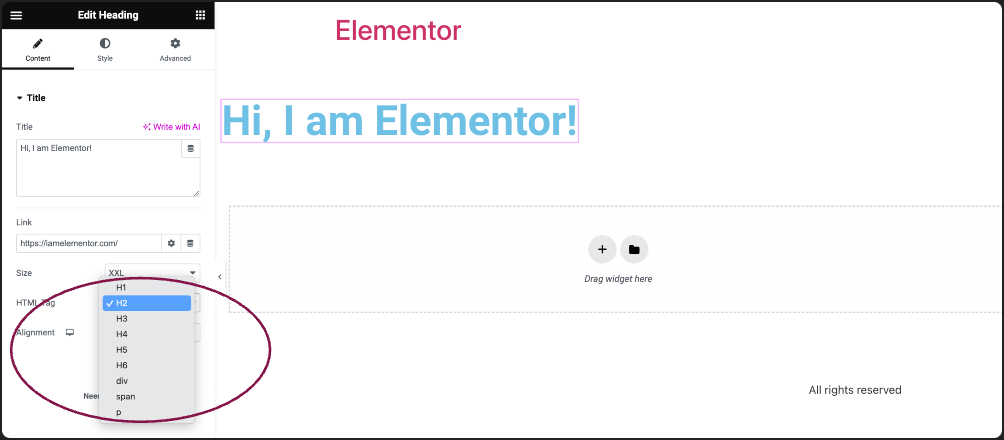
How to Edit the Text of Your Site’s Heading Using Elementor’s Editor?

Editing your site’s heading with Elementor is simple and doesn’t require any coding knowledge. Follow the steps below to update the text quickly and safely.

First, log in to your WordPress dashboard and open the page you want to edit. Click Edit with Elementor to launch the visual editor. Once the page loads, you will see your content on the right side and the Elementor panel on the left.

Next, locate the heading you want to change. Click directly on the heading text in the preview area. When selected, the left panel will display the Heading widget settings. In the Content tab, you’ll see a text field labeled “Title.” Simply delete the existing text and type your new heading.

After editing the text, you can also adjust its appearance. Switch to the Style tab to change the font, size, color, alignment, or spacing. This allows you to match the heading to your site’s overall design.

Once you are satisfied with the changes, click the Update button at the bottom of the panel to save your edits. Your new heading text will now appear live on your website.

Tip: If the heading does not change, make sure you are editing the correct page and that the heading is not part of the theme’s global header. If it is, you may need to edit it through Theme Builder instead (Elementor Pro).
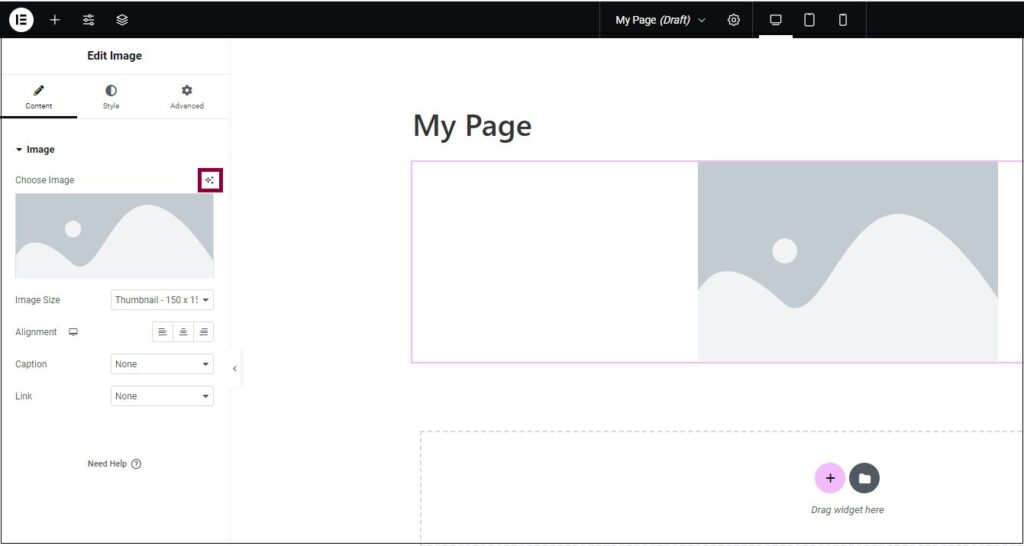
How to Edit the Text of Your Site’s Heading Using Elementor’s Editor?

Editing your site’s heading with Elementor is simple and doesn’t require any coding knowledge. Follow the steps below to update the text quickly and safely.

First, log in to your WordPress dashboard and open the page you want to edit. Click Edit with Elementor to launch the visual editor. Once the page loads, you will see your content on the right side and the Elementor panel on the left.

Next, locate the heading you want to change. Click directly on the heading text in the preview area. When selected, the left panel will display the Heading widget settings. In the Content tab, you’ll see a text field labeled “Title.” Simply delete the existing text and type your new heading.

After editing the text, you can also adjust its appearance. Switch to the Style tab to change the font, size, color, alignment, or spacing. This allows you to match the heading to your site’s overall design.

Once you are satisfied with the changes, click the Update button at the bottom of the panel to save your edits. Your new heading text will now appear live on your website.

Tip: If the heading does not change, make sure you are editing the correct page and that the heading is not part of the theme’s global header. If it is, you may need to edit it through Theme Builder instead (Elementor Pro).

How to Edit the Text of Your Site’s Heading Using Elementor’s Editor?

Editing your site’s heading with Elementor is simple and doesn’t require any coding knowledge. Follow the steps below to update the text quickly and safely.

First, log in to your WordPress dashboard and open the page you want to edit. Click Edit with Elementor to launch the visual editor. Once the page loads, you will see your content on the right side and the Elementor panel on the left.

Next, locate the heading you want to change. Click directly on the heading text in the preview area. When selected, the left panel will display the Heading widget settings. In the Content tab, you’ll see a text field labeled “Title.” Simply delete the existing text and type your new heading.

After editing the text, you can also adjust its appearance. Switch to the Style tab to change the font, size, color, alignment, or spacing. This allows you to match the heading to your site’s overall design.

Once you are satisfied with the changes, click the Update button at the bottom of the panel to save your edits. Your new heading text will now appear live on your website.

Tip: If the heading does not change, make sure you are editing the correct page and that the heading is not part of the theme’s global header. If it is, you may need to edit it through Theme Builder instead (Elementor Pro).

Cart (0 items)

Shamba Sauces- Each bottle of Shamba supports the creation of sustainable livelihoods and income opportunities for smallholder farmers across Tanzania.

Contact Info

Cart (0 items)